Tech Stack Detection: Boosting B2B Sales Success

Tech Stack Detection and Filtering: Why It Matters for B2B Sales
Published: February 2026
Selling to a company that runs everything on AWS when your product only integrates with Google Cloud is a waste of everyone's time. Same with pitching a React-specific tool to a team on Vue, or a Salesforce add-on to a HubSpot shop. The tech stack tells you what they're already using, what they're comfortable with, and whether your product will slot in or require a migration nobody wants to think about.
We added tech stack detection and filtering so you can stop guessing. Here's how it works and how to use it.
Why Tech Stack Matters (Beyond the Obvious)
Every B2B sale involves some level of technical fit. If you're selling dev tools, the stack is the sale. If you're selling to ops teams, their infrastructure (Cloudflare, Vercel, whatever CDN they use) determines whether your monitoring works out of the box. Even non-technical buyers care: "Does this work with our stack?" is one of the first questions they ask.
The problem is visibility. Company websites don't list their full stack. LinkedIn might mention "cloud-native" but not which cloud. Job postings hint at technologies, but you'd have to read every listing and cross-reference. By the time you've figured it out, you've burned 20 minutes on a company that was never a fit.
Tech stack data removes that research step. You filter upfront, see what they use in the company profile, and factor it into your ICP scoring. No more discovery calls that end with "Oh, we're actually on X, not Y."
What We Detect and How
We analyze company websites to detect technologies in use: CDNs, cloud providers, analytics tools, frameworks, authentication systems, and more. The detection runs when companies are added to the platform and when new companies are pushed via our admin funding endpoint, so the data stays current.
Each company gets a tech stack profile: technology names, categories (e.g. CDN, IaaS, Analytics), and optional links to vendor sites. If we can't detect anything (site down, blocking, etc.), we don't show a tech stack section. No placeholders, no error messages, we simply omit it.
Step 1: Filter by Technologies
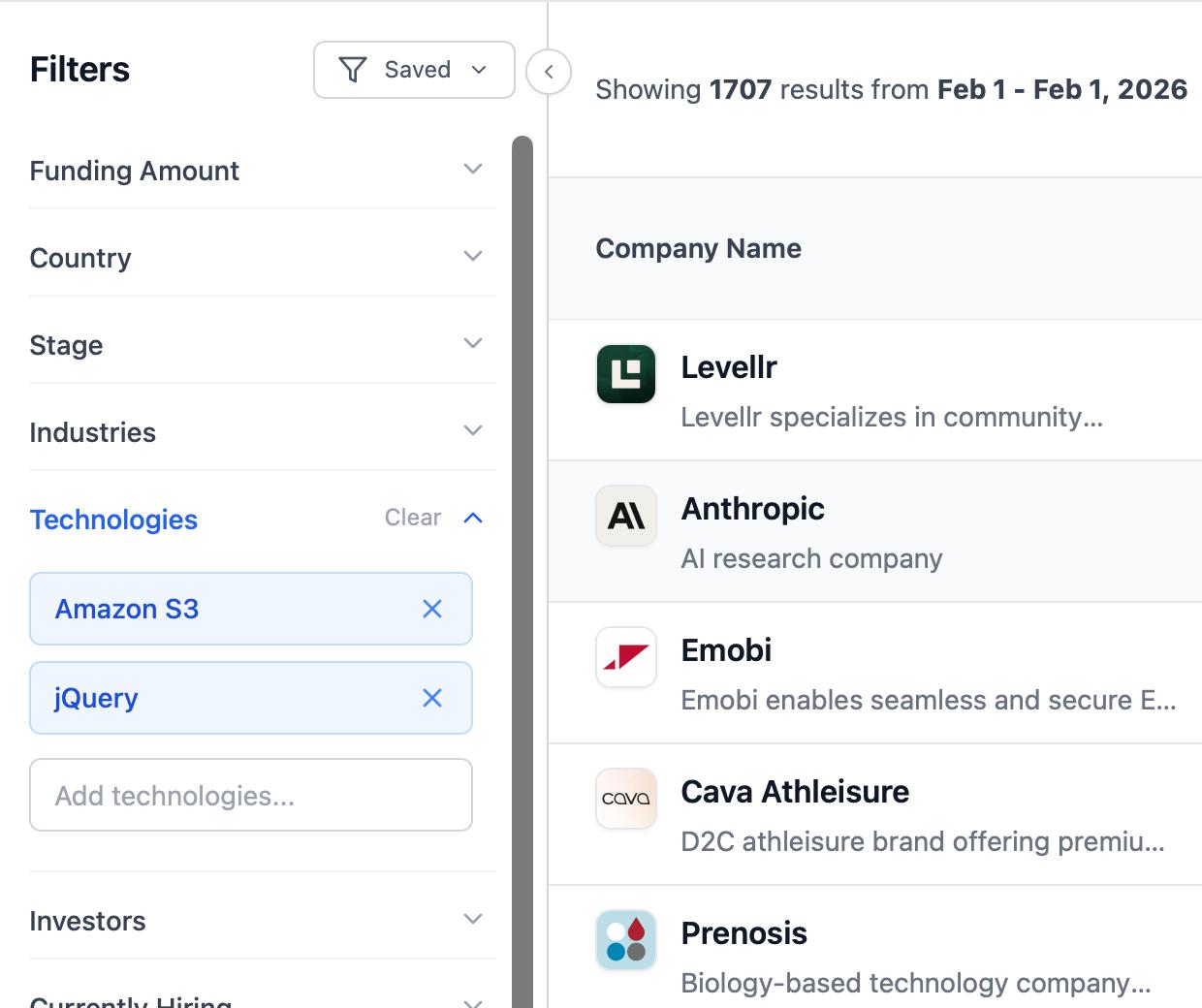
The sidebar has a Technologies filter. Select one or more technologies (e.g. Cloudflare, Google Cloud, React), and the list narrows to companies that use at least one of them.
This is useful when:
- Your product integrates with specific platforms (e.g. "only companies using Segment")
- You're targeting a technical profile (e.g. "companies on Next.js and Vercel")
- You want to exclude tech mismatches before exporting or reaching out
The filter uses an OR logic: companies that have any of the selected technologies show up. Combine it with industry, stage, funding amount, and the rest of the filters the same way you normally would.
Step 2: View Tech Stack in the Company Modal
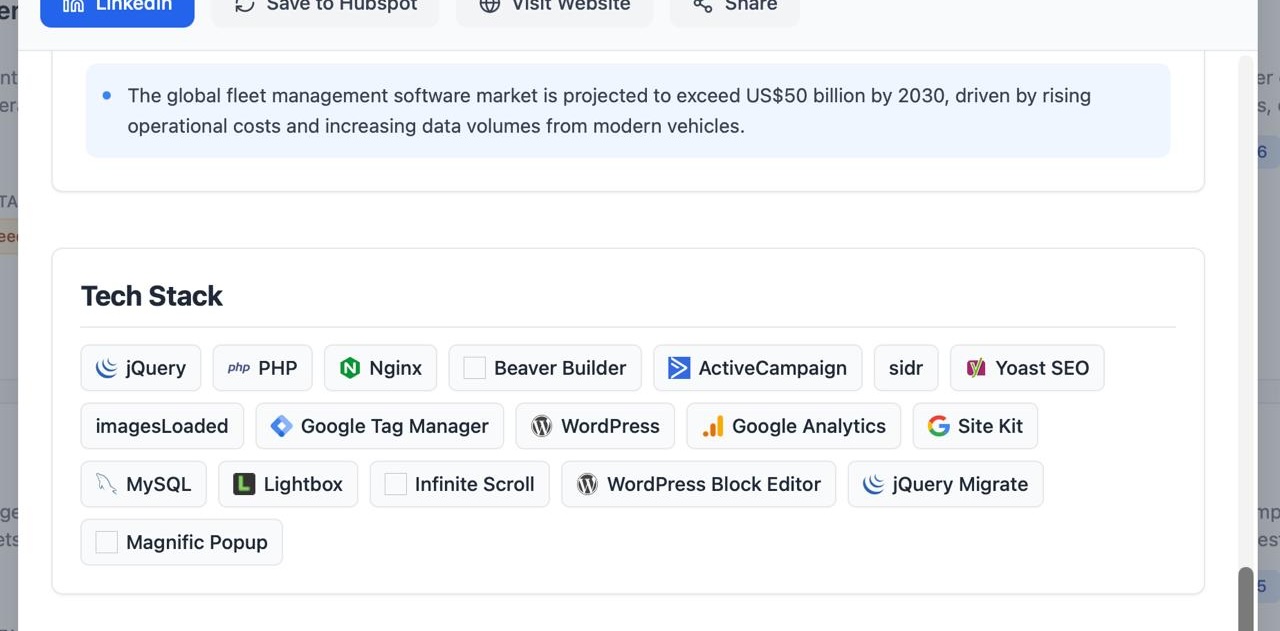
Click a company to open the details modal. If we've detected their tech stack, it appears in a section above Key Contacts. Technologies are shown as badges: icon, name, and a link to the vendor site when available.
No categories, no extra labels: just a dense list of what we found. You can skim it in seconds instead of digging through job posts or guessing.
Step 3: Add Technologies to Your ICP
ICP matching already considers industry, location, stage, company size, hiring status, and validated contacts. We've extended it to include technologies.
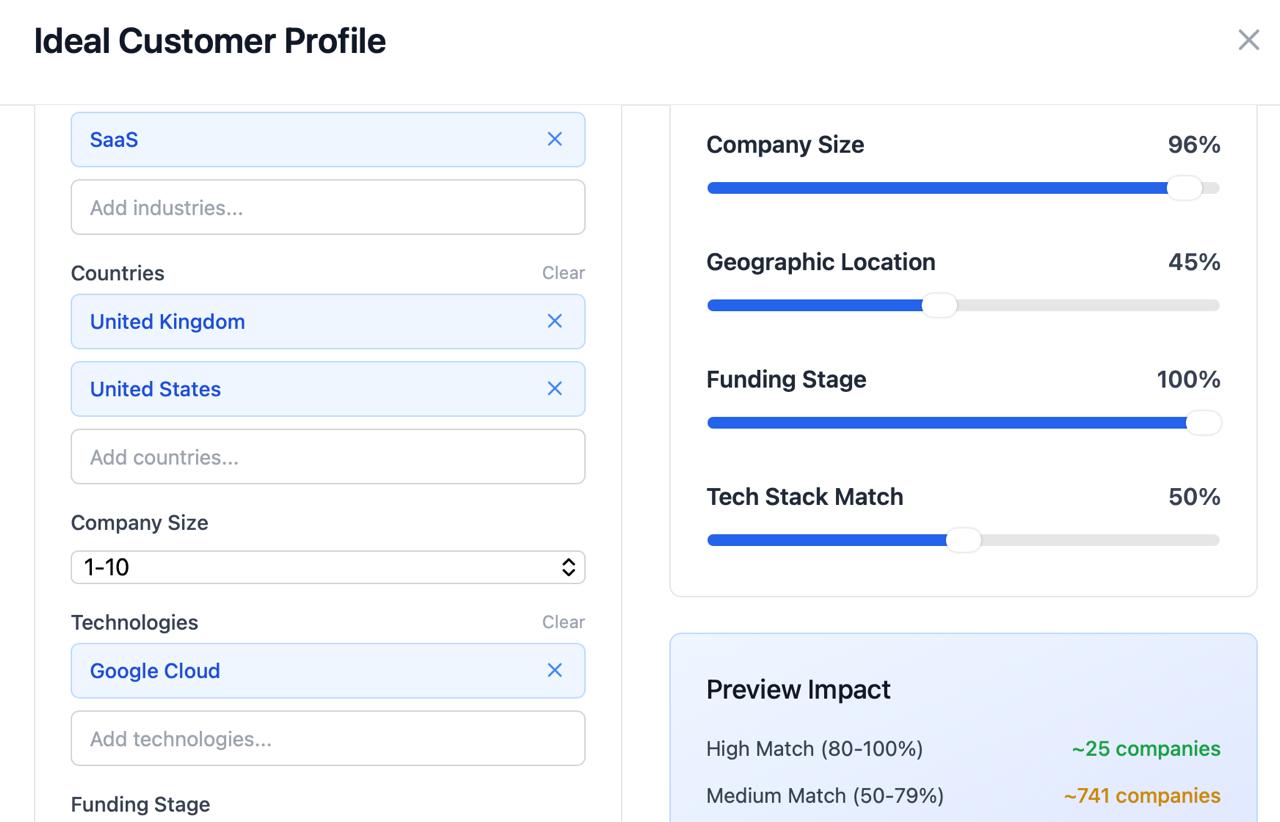
In Settings → ICP, you'll find a Technologies multi-select and a Tech Stack Match weight slider. Add the technologies that indicate a good fit for your product. Set the weight (default 0.5) based on how important tech fit is for you. If you're selling a Vercel integration, tech stack might be 70% of your score. If you're selling generic business software, maybe 20%.
When we calculate the 0–100 ICP match score, we check overlap between the company's detected technologies and your ICP technologies. More overlap = higher score. Companies that don't use any of your target technologies get a lower tech stack component, which pulls the overall score down.
Step 4: Export, API, and CRM
Tech stack flows through the rest of the platform:
CSV Export
Include "Tech Stack" and "Tech Stack Categories" columns when exporting. You get a semicolon-separated list of technologies per company, ready for enrichment or segmentation in a spreadsheet.
CRM Export (HubSpot, Salesforce)
Exported companies include tech stack in the description/notes field. Your CRM has the context without a separate lookup.
Public API
GET /api/v1/companies accepts technologies[] as a filter parameter. GET /api/v1/companies/{id} returns tech_stack when available. GET /api/v1/filters provides technologyOptions for building your own UI.
Webhooks & Zapier
ICP match and funding webhook payloads include techStack and techStackCategories so downstream automations can use them.
Putting It Together
Typical flow:
- Define your ICP in Settings, including target technologies and the Tech Stack Match weight.
- Use the sidebar Technologies filter when you want to focus on a specific stack (e.g. "Show me Series A companies using Stripe").
- Browse the list; ICP scores reflect tech stack fit.
- Open a company modal to see the full detected stack before outreach.
- Export to CSV or CRM with tech stack included.
- Use the API if you're building custom workflows.
Filtering gives you control at query time. ICP matching gives you prioritization. Both use the same underlying data.
The Bottom Line
Tech stack is a signal most B2B teams ignore because it's tedious to research manually. We detect it automatically, let you filter on it, factor it into ICP scores, and pass it through exports and integrations. You spend less time qualifying technical fit and more time talking to companies that actually match.
Ready to filter and score by tech stack?
Get started with Fundup AI: tech stack detection is included on all plans.


